
How to get the most out of Timely AutoSheet
(and never fill out a timesheet again).
Best Practice Guide
Table of Contents
Quick wins to sharpen your AutoSheet and cut manual edits.
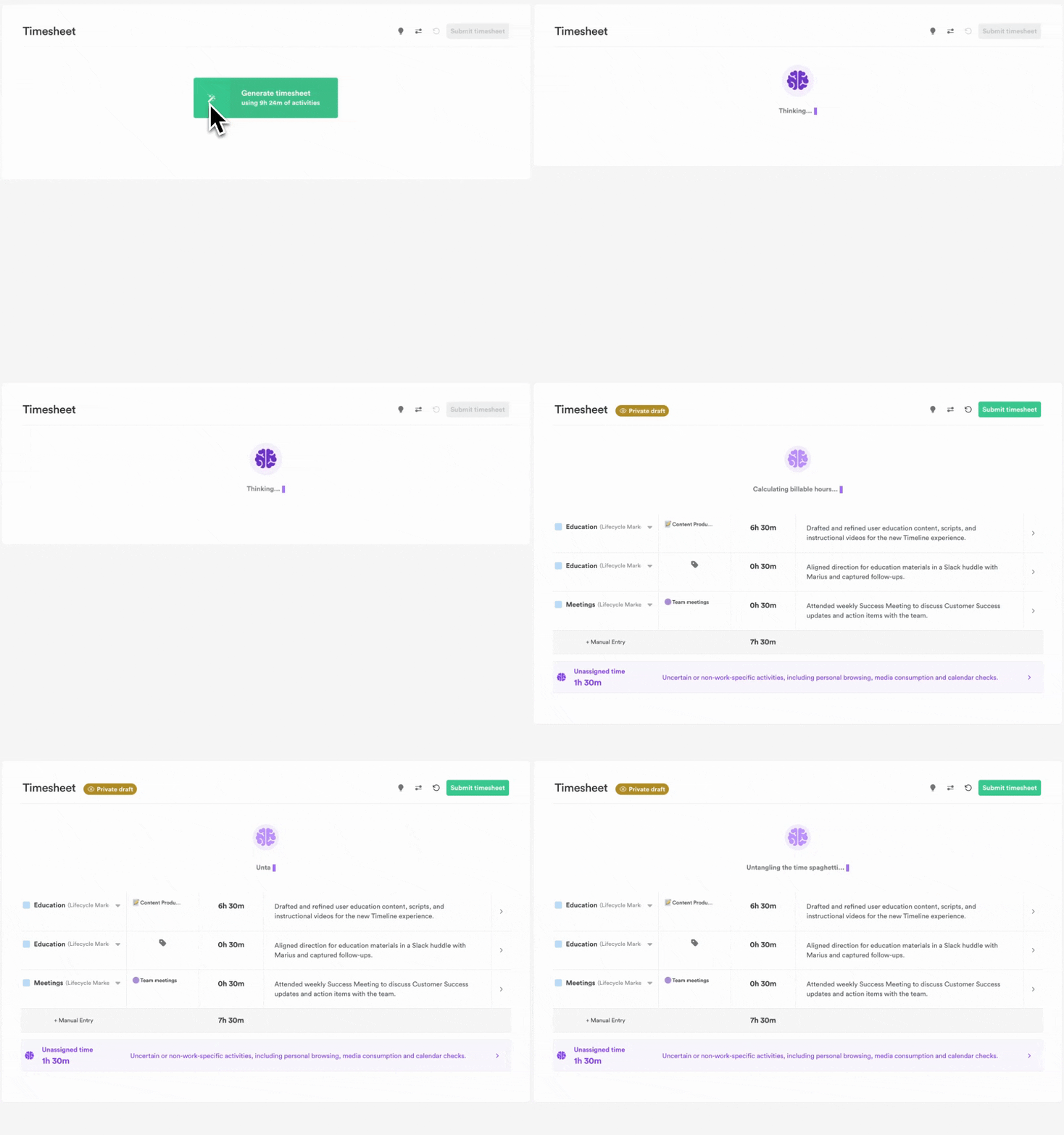
If you’re already using Timely AutoSheet, you’ve felt the relief of skipping blank timesheets and letting AI handle the heavy lifting: summarizing your day, assigning the right projects, and giving you a full draft in seconds.
It’s perfectly normal to fine-tune a few entries at first. AutoSheet is still learning from your habits and preferences, and every edit helps it get better at anticipating your needs. The more you use it, the smarter and more seamless it becomes.
The good news?
A few simple habits can dramatically improve your results. Here’s how to make AutoSheet faster, smarter, and more accurate. Starting today.
Tip #1 Keep your workspace tidy
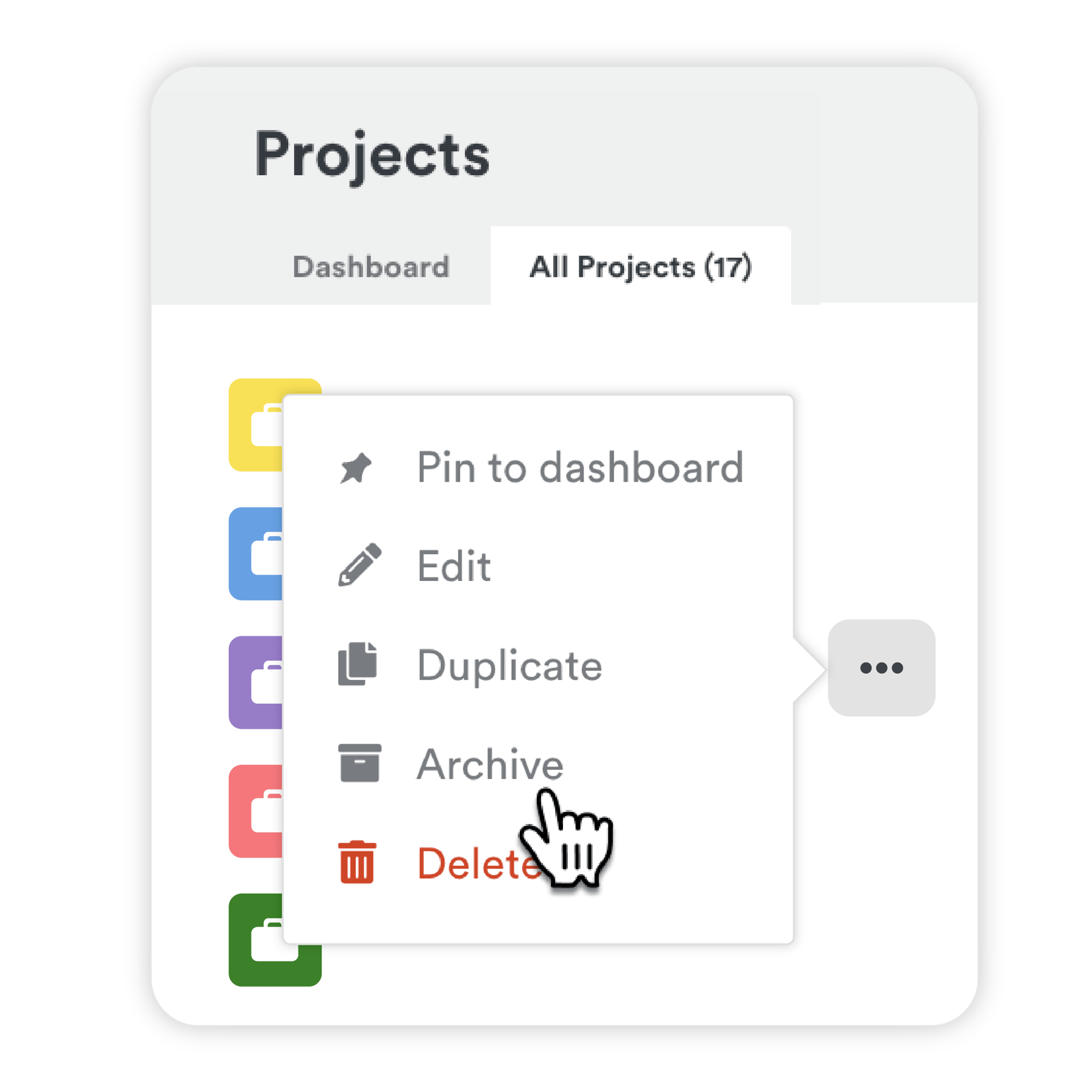
AI assistants like AutoSheet work best when they’re focused on a clear, up-to-date list of projects. If you’re assigned to dozens of old or inactive projects but only log time to a handful, the AI has to guess across a much wider range, which can lead to mismatches and errors.
- For employees:
If you notice stale or irrelevant projects, flag them to your admin. - For admins and managers:
Regularly review project assignments and unassign team members from stale projects.
Keep your system clean by archiving old clients or projects no longer in use.
Encourage your team to let you know when projects should be updated or removed. - Avoid:
Keeping every project you’ve ever touched open and active. This creates noise and confusion for both you and the AI.
“We test out a lot of AI tools, this has me most excited right now”
- Jon, Newwave Cloud Consulting
TIP #2 Better names, better suggestions
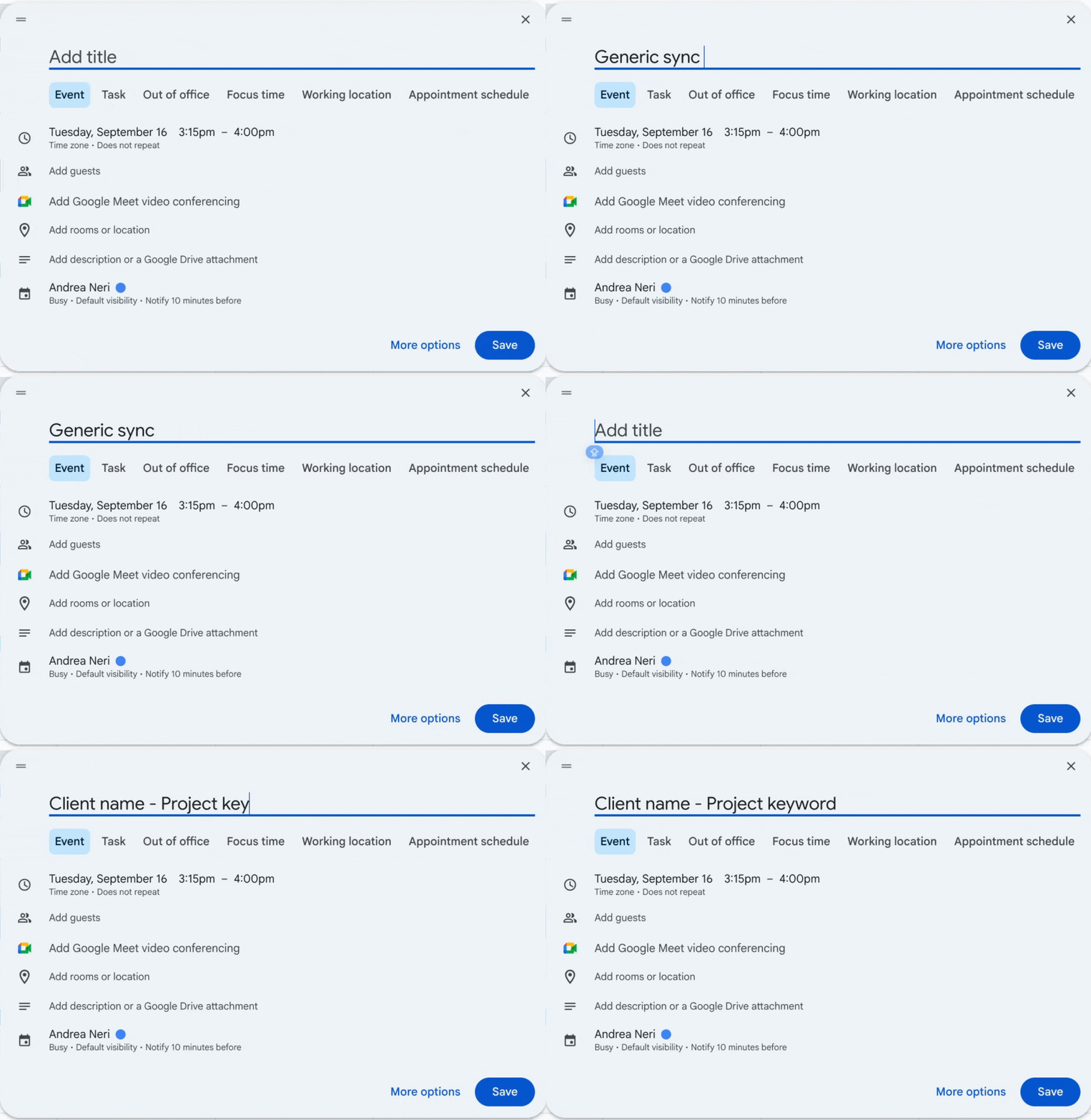
Clear, consistent naming gives AutoSheet the context it needs to match your work accurately.
The AI matches activity to projects using clues from filenames, calendar events, meeting titles, URLs, and past behavior. If those inputs are vague or inconsistent, it has less to work with—and suggestions will be less accurate.
Do this:
- Name projects with both client and purpose (e.g., “Client X – Website QA”)
- Use meaningful, descriptive project descriptions where needed
- Keep tag lists short and focused
- Title meetings with project and context (e.g., “Client X – Launch Review”)
- Label recurring calendar events with something specific, not just “Sync” or “Standup”
Avoid:
- Generic project names like “Development” or “Admin” used across multiple teams
- Duplicate client names without context
- Ambiguous recurring meetings with no identifiers
Tip #3 Help AutoSheet learn faster with small early tweaks
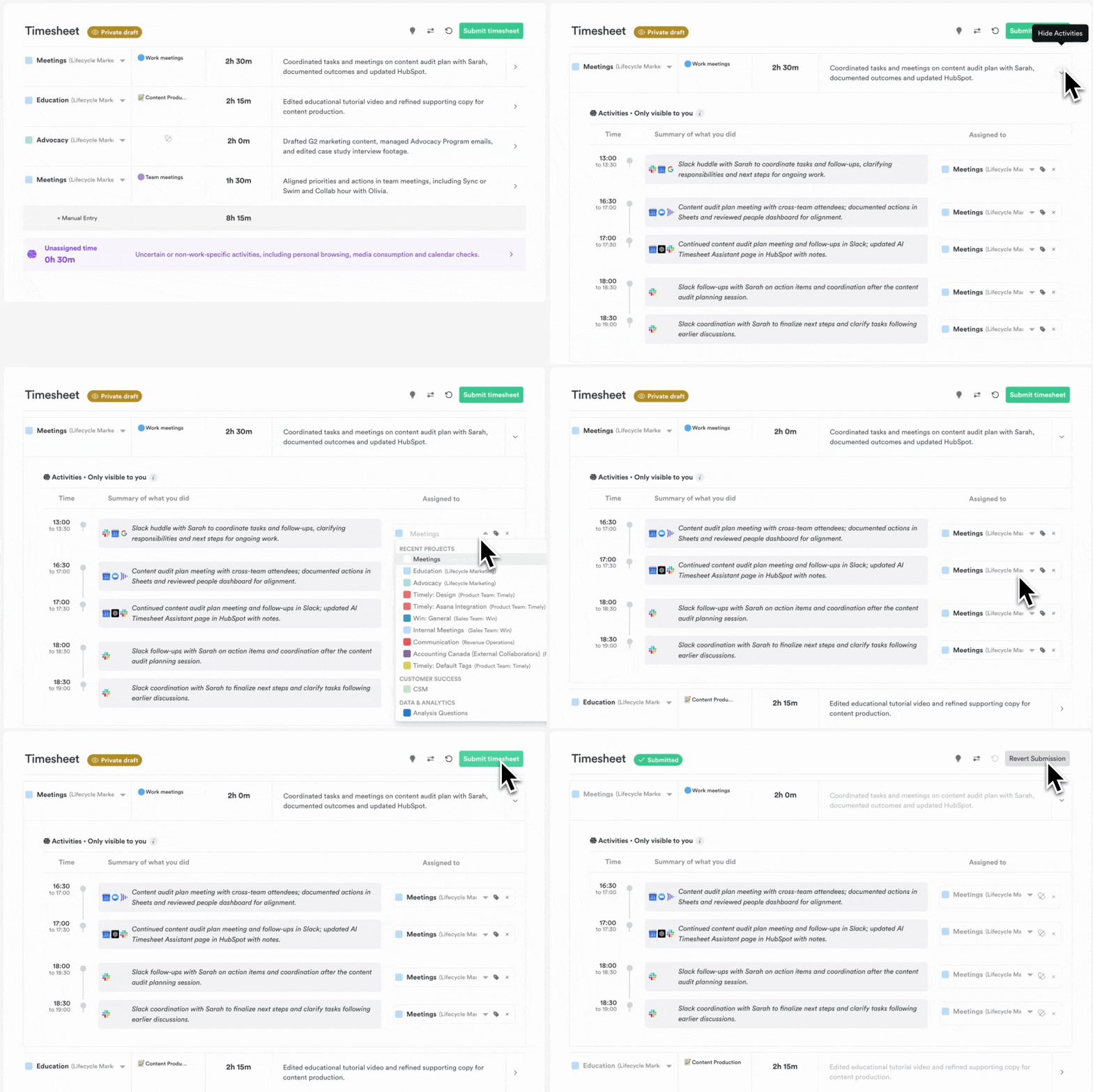
Timely’s AI thrives in clean spaces. Here's how to give it the feng shui it needs.
Your early reviews and corrections are critical for training the AI. If you leave entries unreviewed or assigned to the wrong project, the system assumes they’re correct, and will replicate them.
Do this:
- Edit the first few timesheets thoroughly
- Correct wrong project assignments and summaries
- Submit timesheets after validating all blocks
Avoid:
- Submitting incomplete or inaccurate timesheets “just to get it done”.
Tip #4 Daily habits = less cleanup later
AutoSheet runs best with fresh context. The longer you wait between reviews, the more gaps and uncertainties build up. Daily reviews keep your data clean and teach the AI faster.
Do this:
- Let AutoSheet run at 8am (local time) each morning
- Open and review your day from the previous workday<
- Use the manual “Generate” option if you miss a day
Avoid:
- Letting suggestions pile up, then correcting a backlog once a week.
Tip #5 Install and run the Memory app
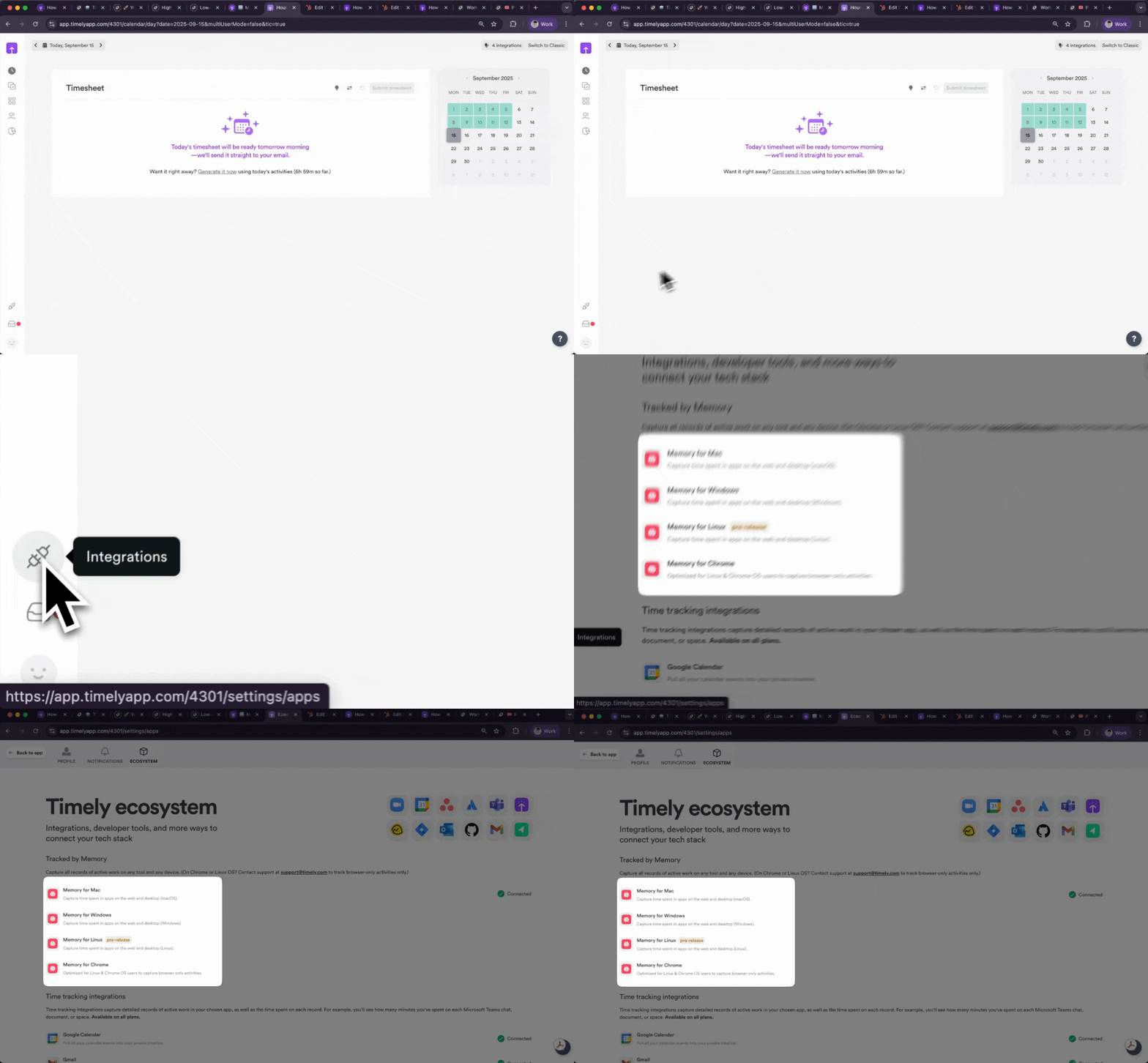
To give AutoSheet the context it needs, it needs more than just calendar events. That’s where the Memory app comes in. It securely tracks the tools you use, documents you open, and websites you visit—turning that real activity into smarter, more accurate time suggestions.
Without Memory, AutoSheet can only rely on calendar entries and past logs. With it, it sees what actually happened during your day.
Worried about privacy? Don’t be. Your raw activity data stays 100% private. Only the summaries you approve in your timesheet are ever shared or included in reports.
Do this
- Make sure the Memory app is installed and running
- Confirm that it’s capturing activity each day
- Keep calendar and meeting integrations (e.g. Zoom, Teams) active if relevant
Avoid:
- Depending only on calendars or manual entries—the AI can’t see what it doesn’t record.
Tip #6 Keep your summaries short, but don’t skip them
You can edit AutoSheet’s summaries, and in some cases, you should. But don’t remove them entirely or leave entries blank. Summaries are part of what the AI uses to train future entries.
Do this:
- Clean up summaries when they’re unclear
- Include key deliverables or context
- Use action verbs and short, clear phrases (e.g., “Reviewed campaign analytics”, “Fixed login API issue”)
Avoid:
- Overwriting summaries with vague notes like “Work” or “Various tasks”.
Bonus: If the assistant gets something wrong, don’t just delete it; correct it.
If you delete an entry instead of reassigning it or editing the summary, the AI doesn’t learn what went wrong. It just loses the opportunity to improve.
Do this:
- Reassign incorrect blocks to the correct project
- Adjust summaries instead of wiping them
- Only delete blocks if they’re truly personal or irrelevant
TL;DR 5 ways to train AutoSheet faster
What to do |
Why it matters |
|
Stay assigned to only active projects |
Reduces noise and mismatch |
|
Use clear names |
Improves matching accuracy |
|
Review early timesheets carefully |
Builds a correct baseline |
|
Log daily, not weekly |
Keeps AI learning up to date |
|
Edit, don’t delete |
Helps the system learn |
The goal of AutoSheet isn’t just faster logging—it’s smarter, more confident logging. These small changes help turn AutoSheet into an accurate, reliable part of your daily workflow.
If you’re spending more than 2 minutes fixing each day’s proposal, try applying a few of the tips above. Your assistant is smart, but it learns from you.
Final Thoughts One week of training = one click time tracking
Yes, there’s a bit of setup. But it’s light. A week of review, and suddenly your AI is drafting your whole day for you.
You’re not just training an algorithm. You’re reclaiming hours of your week.
Ready to try Timely's AI AutoSheet?
SHARE